A little help
There’s no right way to be you.
Your workspace is a place to gather the things you want someone to understand. Start small. Leave room to change your mind.
A little company for the blank page.
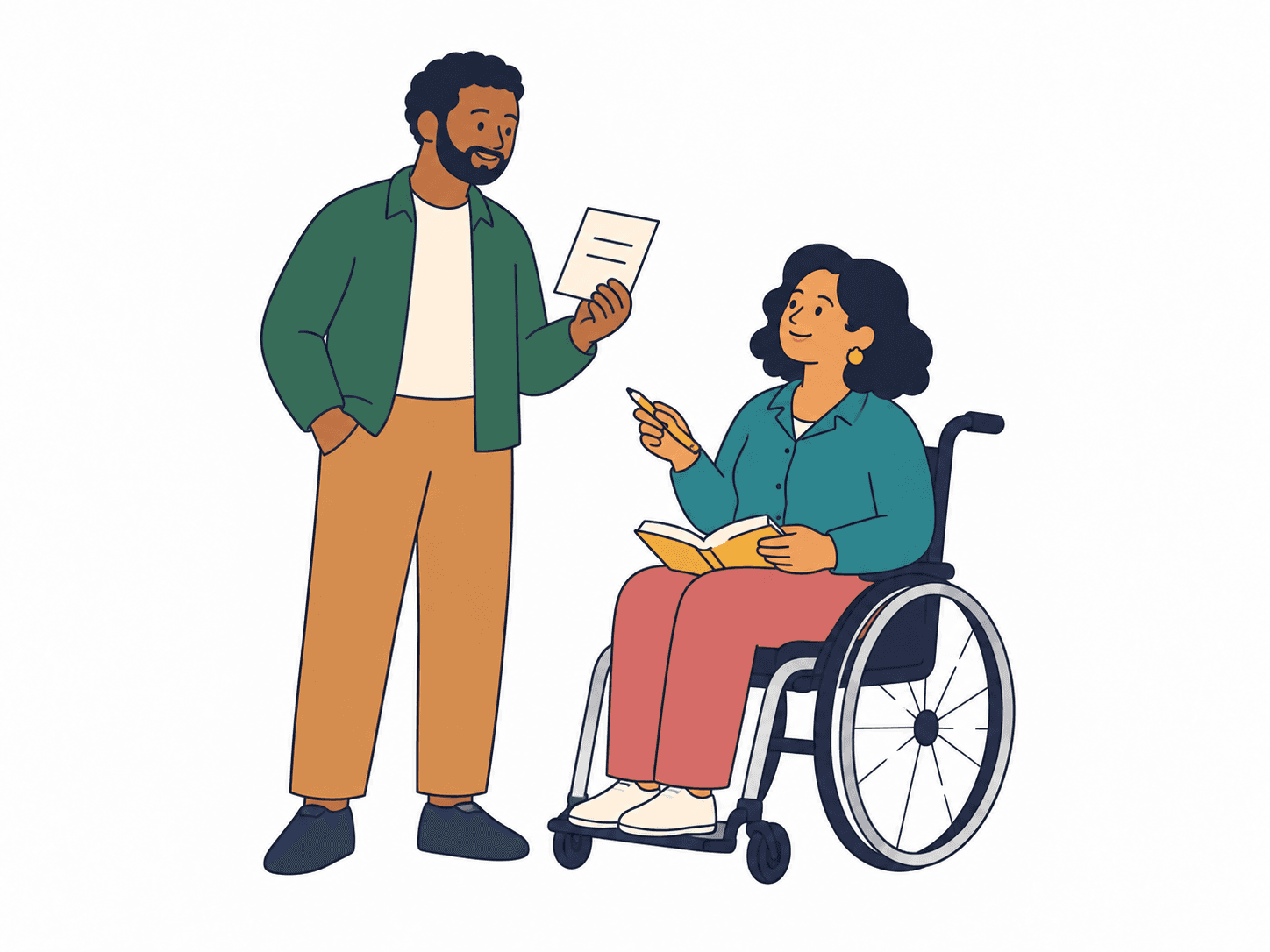
At your own pace
What would help today?
Open the bit you need. The rest can wait.
Write something of your own.
Choose Write something in your collection. Start with a title and your words; no website or source link is needed. Use the controls for headings, emphasis, lists, quotes and web links. Pasting brings in plain text, and optional tags are yours to choose.
Read piece and Preview let you inspect your working words. Open Inspect this writing’s structured content to see the same body, formatting, links and tags as JSON with a readable text version. This includes unsaved edits; connected assistants read the saved draft. The complete selected public record is available separately in publication review. Save draft keeps them privately in your account. To share a piece, select it in Review & publish, inspect the exact version and approve it. Later private edits do not change the public version.
Choose Edit Markdown for an optional source view. Apply Markdown updates your working copy; Save draft then keeps it privately. Unsupported source stays in this tab with an explanation, and saving is paused until you apply it or choose Keep previous writing. Lists and quotes can nest up to three levels. Use Indent item and Outdent item (or Tab and Shift+Tab inside a list). Pictures are not supported yet. If a save fails, keep the tab open and retry. If another session saved first, load its version while keeping your unsaved writing in the recovery copy.
Begin with one small thing.
Edit your introduction, or add a piece to your collection. A piece might be a project, a talk, a small contribution, an interest, or something you’re still learning.
A title is all a piece needs to be saved. The other fields are optional. If the suggested questions help, use them. If they don’t fit, open “More context, if it fits” and use “The story behind it” in your own way.
Leave a little room to breathe.
Choose a section in the workspace navigation, then open the piece or source you want to work on. Your words stay in place when you move between sections or turn to the next six pieces. A small dot marks sections with unsaved changes.
Choose Preview for a quiet read of the whole draft, including your unsaved words. Open a piece for its full story, or turn to the next six. If you were working on a piece, Preview brings you straight to it. This is private working context, not a public page. Edit introduction, Edit this piece and Edit this source take you directly to those fields. Your other unsaved words stay in place. Back to editing returns you to where you entered the preview. These controls do not save or publish anything.
To move or remove a piece, open Arrange or remove beneath it.
Save the words that sound like you.
Choose Save draft to keep changes from every section together. Switching back to a reading view keeps your edits in the open tab; it does not save them. Open Saved details to see the time and revision that reached your account.
Unsaved words stay in the open tab. They are not backed up on this device. Save before closing the tab or leaving. If a save cannot be confirmed, keep the tab open and retry; the same save will not be applied twice.
Remember where they came from.
Add a source link, say why you’re keeping it, and attach it to a piece or leave it as general context. Adding a link does not import its contents, connect an account, or make it verified.
Source sharing preferences are notes for a later review. Every source remains private here. Removing a piece lets you keep its sources as general context or explicitly remove them too. Removing a source does not delete the original page.
Find the threads between the pieces.
Open a piece and look for Related pieces. Choose Relate a piece or Edit connections, select another piece, and optionally explain what connects them. These controls also appear while editing the piece.
A connection is visible from both pieces. You can follow it, change the linked piece, revise the explanation or remove the connection from either end. The context names its starting and ending pieces so a thought like “inspired by” keeps its meaning.
Removing a connection keeps both pieces and their sources. Choose Save draft to keep the change, or discard your unsaved changes to restore it.
Let a little help sit beside you.
A connected assistant can read and save the same private draft, including its sources. Your workspace checks the saved version before accepting an edit. Choose Check for updates to see changes made elsewhere.
If there’s a newer version, you can inspect it before loading it. Your unsaved copy stays visible in that tab so you can bring back the words you want. We won’t quietly overwrite either version. Finish with the recovery copy before closing the tab.
If your sign-in expires, use “Sign in in another tab” and return to the original editor after signing back into the same account. Your unsaved words stay in the original tab; the new tab opens the saved record. The sign-in link preserves your place, and signing in does not save or publish anything. Assistant access can be turned off in your workspace; disconnection does not delete your draft.
And keep a little just for you.
Private saving does not publish your words. In development, you can select content, inspect the publication review and approve it on the web. Later draft changes stay private until you approve a new publication, and you can withdraw the public introduction.
Profile uploads, account-backed People, issued wallet passes and account export/deletion are still being built. The public demo uses fictional records; its QR and contact downloads are samples. There’s no score to improve and no need to fill every space.